


How to back up cisco devices


Cisco is one of the most popular brands between users that equip their network by cisco products. The products that produce by cisco include network switch, network router, server and etc.
Network switch is also one of the most important and essential network equipment for every network that connects devices together.
Sometimes, maybe you need to recovery information and have backup from your network devices. In this article, we are going to focus on this topic and explain “How to back up cisco devices”.
How to back up cisco devices:
You will realize in your network that there is nothing more important than backing up your system’s configuration. The result of many days or months can disappear in seconds. So, it is too necessary to take the measures to prevent this from happening.
Performing backups often is important but also testing them can be invaluable because you need to make sure that you can rely on them when needed.
Let’s learn How to back up cisco devices and how to connect a cisco router by using telnet and console access, then we will see how to perform configuration backup to a TFTP server and how to restore the backup in case it is needed.
- First step: Attach a console cable to the console port (Rj-45) located at the back of the router.
- Second step: Open a new HyperTerminal instance from Start-All Programs-Accessories-Communications-HyperTerminal, enter a random name to this connection and choose the com port to use for connecting to the router. Adjust the following port settings to the com port:
-Bits per second: 9600
-Data bits:8
-Parity: none
-Stop bits: 1
-Flow control: hardware
- Third step: After pressing [Enter] a few times you will see the Router> prompt. Go to menu view-font of the hyperterminal and select courier font with font size 14.
Write enable to enter into privileged mode (after issuing the correct enable secret). Here are the steps:
-[Router name]>
-[Router name]> enable
-Password: ……
-[Router name]#
Connecting to a cisco router using telnet:
Pay attention that in order to be able to telnet onto a router, a telnet password must have been configured on the router and also telnet access should not be disabled on the specific router.
Before installing a new router, you must provide a password for the telnet access on the router, otherwise you will not be able to telnet to it.
Use the console to connect to the router:
[Router name] enable
Password: …..[insert enable secret here]
[Router name]#sh run
Press [enter] until you see a sentence like: line vty O 4 (see the example below). This sentence you should see a password. If not then you should provide a password. If a password is set but no exec line is seen like in the example below, then telnet is blocked and you should unblock it.
Line vty 0 4
Password surpass
No exec
*To provide a telnet password
Router#config t
Router(Config)#line vty 0 4
Router (Config)#login
Router(Config)#password [password name]
Press [Ctrl][z] and issue sh run to ensure that password has been ser
*To Unblock telnet access on Router
Router#config t
Router(Config)#line vty 0 4
Router(Config)#exec
C:\>telnet 10.176.100.2
Password: ……….
[Router name]>enable
Password: ……….
[Router name]#
Cisco switch backup:
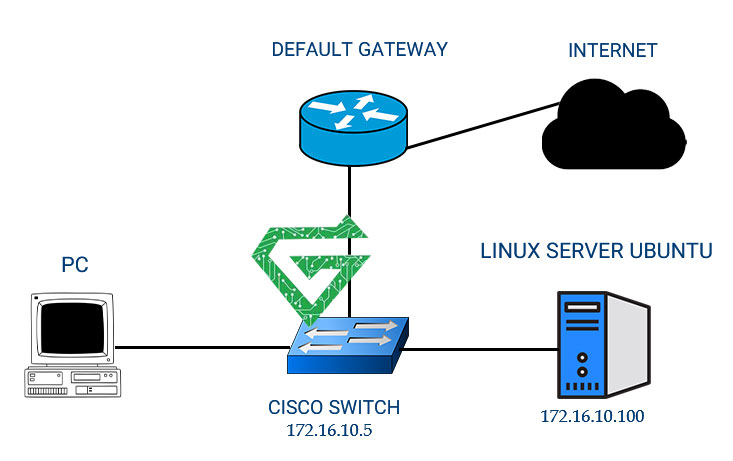
The setting of cisco switch is stored in a file called Config File, which is the most important option for backup. Some of common backup methods in cisco switch and other cisco devices such as cisco router, we will discuss below:
- NV RAM or Non-volatile random-access memory backup
- FTP or File Transfer Protocol backup
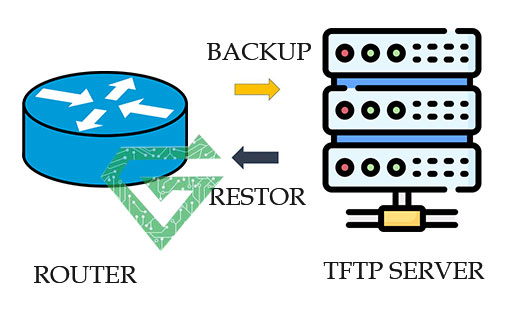
- TFTP or Trivial File Transfer Protocol backup
1-NV RAM or Non-volatile random-access memory backup:
As mentioned above, the Cisco switch RAM memory, where the settings are stored, loses its data and information as soon as the device is reloaded or turned off and on. As a result, you have to add the device settings to it again every time the Cisco switches are turned on and off.
It is better to know that there is another memory in addition to RAM memory in Cisco devices, including Cisco switches, which we call NVRAM. Unlike RAM memory, which is volatile, this memory is non-volatile, meaning its information will remain in its original form after the device is reloaded or turned on and off.
Given that NVRAM memory is a permanent memory, you can copy the information in RAM to this memory so that in the event of problems such as reloading the device, the information is copied from NVRAM to RAM again and the device retains its settings. Therefore, using the information in NVRAM to back up the Cisco switch can be a good method.
2- FTP or File Transfer Protocol backup:
FTP or File Transfer Protocol is a file transfer service or in other words a network file server. You can transfer your equipment backup file to the FTP server through this protocol. The protocol used in the FTP service uses two port numbers 20 and 21. Port number 20 is used to transfer data and information and port number 21 is used to control the connection.
The FTP protocol has an authentication structure, meaning that to connect to the FTP server, the user or device in question must have a username and password that has the necessary access permissions to communicate with the FTP server. In order for us to be able to backup Cisco equipment settings in this way.
First, we must enter the IP address of the FTP server as well as a valid username and password in our desired Cisco equipment. Finally, by introducing the server, we can use the copy command in the Cisco switch to tell the device to transfer its settings to this FTP server over the network. Note that FTP is a layer 7 protocol.
3- TFTP or Trivial File Transfer Protocol backup:
TFTP is also a file transfer protocol and is somewhat similar to FTP. In general, TFTP is derived from the FTP protocol, with the difference that instead of using ports 20 and 21, it uses port 69 and unlike the FTP structure, it does not require a username and password to communicate with TFTP.
This protocol also operates at layer 7 and uses the UDP protocol to establish its connections. There is no authentication operation in this protocol because Username and Password are meaningless in this protocol and for this reason it is more used in backing up equipment.
Its general working structure is similar to the FTP structure and has a Client and Server structure. The settings of this protocol for backing up operations are also like FTP, with the difference that there is no need to enter authentication information.
But in general, you may wonder that with a structure called NVRAM and due to the stability of this memory, why is there a need to back up information and equipment settings elsewhere, such as network servers? The answer to this question is very easy, suppose you have taken a backup of your router and switch configurations and placed it in NVRAM memory.
This is exactly like saying you take a backup of your Windows operating system and place it in the C drive of your system. That is, if the slightest problem occurs in the other operating system, you cannot use your backup.
The same is true for Cisco routers and Cisco switches. Your network switch and router may malfunction or burn out or have problems of this kind at any time and for various reasons, and their NVRAM memory will be damaged. Here you will no longer be able to restore the backup taken in NVRAM.
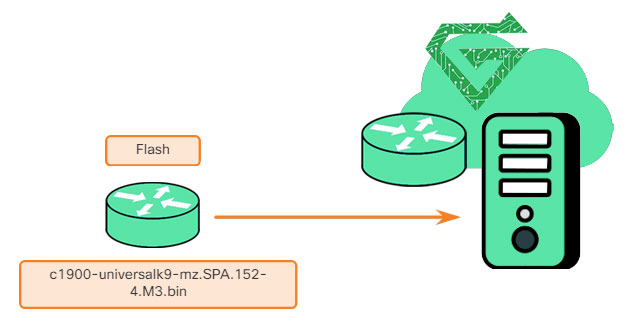
By placing the backup on a server such as FTP or TFTP, even if there is a problem with the router or switch, you can easily introduce your backup from the server to the new switch and restore the settings and configurations made to the original state. This backup operation in a space other than the active workspace is called Offsite Backup.
Command of NV RAM or Non-volatile random-access memory backup:
Switch>en
Switch#conf t
Enter configuration commands, one per line. End with CNTL/Z
Switch(config)#host
Switch(config)#hostname itpro
#itpro(config)
In fifth line, changed the name of device to itpro.
itpro(config)#exit
%SYS-5-CONFIG_I: Configured from console by console
itpro#show running-config
Building configuration
…
Current configuration: 646 bytes
!
version 12.2
no service timestamps log datetime msec
no service timestamps debug datetime msec
no service password-encryption
!
hostname itpro
!
…
interface FastEthernet0/0
no ip address
duplex auto
speed auto
shutdown
!
interface FastEthernet1/0
no ip address
duplex auto
speed auto
shutdown
!
interface Serial2/0
no ip address
clock rate 2000000
shutdown
!
interface Serial3/0
no ip address
clock rate 2000000
shutdown
!
interface FastEthernet4/0
no ip address
shutdown
!
interface FastEthernet5/0
no ip address
shutdown
!
ip classless
!
…
line con 0
line vty 0 4
login
!
…
end
Read more: What is cisco router
after you changed the name, you are able to use the command of forth line for seeing the concept and information in nvram.
itpro#
itpro#show startup-config
startup-config is not present
#itpro
As you see above, with second command you can see the information of nvram, but there is no information in your device, you see the result of third line.
Itpro#copy running-config startup-config
?Destination filename [startup-config]
…Building configuration
[ok]
#itpro
There was no information for saving the concept of hp ram in Nvram, so use the command of first line and then copy and forward data from ram to Nvram.
itpro#show startup-config
Using 646 bytes
!
version 12.2
no service timestamps log datetime msec
no service timestamps debug datetime msec
no service password-encryption
!
hostname itpro
!
…
interface FastEthernet0/0
no ip address
duplex auto
speed auto
shutdown
!
interface FastEthernet1/0
no ip address
duplex auto
speed auto
shutdown
!
interface Serial2/0
no ip address
clock rate 2000000
shutdown
!
interface Serial3/0
no ip address
clock rate 2000000
shutdown
!
interface FastEthernet4/0
no ip address
shutdown
!
interface FastEthernet5/0
no ip address
shutdown
!
ip classless
!
…
line con 0
line vty 0 4
login
!
…
end
In this part, with the command of first line, you can see the concept of nvram and the result of that is as same as the information in ram.
itpro#reload
Proceed with reload? [confirm]
%SYS-5-RELOAD: Reload requested by console. Reload Reason: Reload Command.
System Bootstrap, Version 12.1(3r)T2, RELEASE SOFTWARE (fc1)
Copyright (c) 2000 by cisco Systems, Inc.
PT 1001 (PTSC2005) processor (revision 0x200) with 60416K/5120K bytes of memory
Self decompressing the image:
########################################################################## [OK]
Restricted Rights Legend
Use, duplication, or disclosure by the Government is
subject to restrictions as set forth in subparagraph
(c) of the Commercial Computer Software – Restricted
Rights clause at FAR sec. 52.227-19 and subparagraph
(c) (1) (ii) of the Rights in Technical Data and Computer
Software clause at DFARS sec. 252.227-7013.
cisco Systems, Inc.
170 West Tasman Drive
San Jose, California 95134-1706
Cisco Internetwork Operating System Software
IOS ™ PT1000 Software (PT1000-I-M), Version 12.2(28), RELEASE SOFTWARE (fc5)
Technical Support: http://www.cisco.com/techsupport
Copyright (c) 1986-2005 by cisco Systems, Inc.
Compiled Wed 27-Apr-04 19:01 by miwang
PT 1001 (PTSC2005) processor (revision 0x200) with 60416K/5120K bytes of memory
Processor board ID PT0123 (0123)
PT2005 processor: part number 0, mask 01
Bridging software.
X.25 software, Version 3.0.0.
4 FastEthernet/IEEE 802.3 interface(s)
2 Low-speed serial(sync/async) network interface(s)
32K bytes of non-volatile configuration memory.
63488K bytes of ATA CompactFlash (Read/Write)
Press RETURN to get started!
%LINK-5-CHANGED: Interface FastEthernet0/0, changed state to up
%LINK-5-CHANGED: Interface FastEthernet1/0, changed state to up
%LINK-5-CHANGED: Interface FastEthernet0/0, changed state to administratively down
%LINK-5-CHANGED: Interface FastEthernet1/0, changed state to administratively down
%SYS-5-CONFIG_I: Configured from console by console
itpro>
when you’ve done this setting, turn off your switch and then turn it on, after turning on the switch, you can see the loading of IOS. The name of switch is itpro and it means that setting doesn’t return to first situation and keeping the setting and then continue.
Conclusion:
In this article, we tried to talk about all details of backing up on cisco devices. You can see other our blogs in Atech blog. Atech is a site that you can buy network equipment in high quality and we sell our products with 1-year warranty. If you need to consult, call us with +971505317723.