


What is USB?

As you know all devices in different categories such as network equipment devices, electronic devices, audio devices and etc have USB port, but why? These days, we are observing the progress of everything in the world.
by changing the physical design, speed increasing and connecting fast, USB ports need to update and being adaption with new technologies too, so creating the different types of USB ports to support the new requirements in new devices is necessary.
What is USB?
USB stands for Universal Serial Bus. It’s a standard for connecting devices to a computer or other host device.
In simple terms, USB is the technology that lets you plug in things like:
- Flash drives
- Keyboards
- Mice
- Phones
- External hard drives
- Game controllers
There are different types of USB such as USB-A, USB-C, micro-USB in different versions (USB 2.0, 3.0, 3.1, 3.2, 4.0) which affect speed and power delivery. It’s super common because it’s easy to use and supports both data transfer and charging.
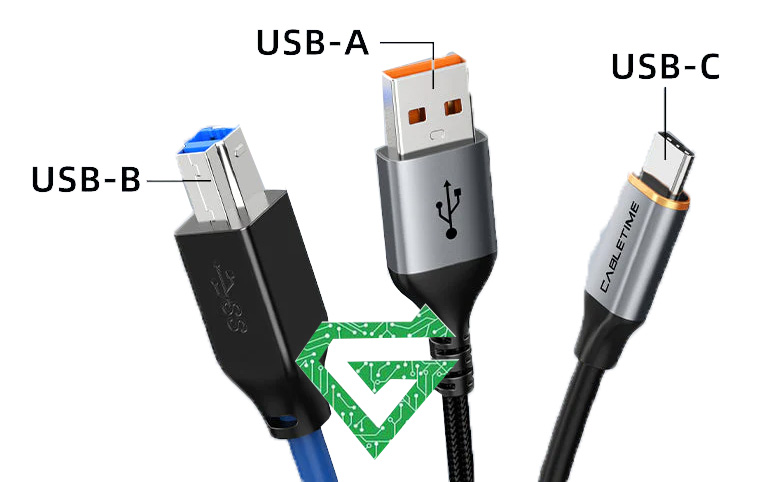
What are USB Types and their specification:
1-USB-A:
The classic rectangular connector you see on most computers and laptops.
- Standard on: Desktops, laptops, TVs, game consoles
- Only plugs in one way (not reversible)
- Used by: Keyboards, mice, flash drives, older phones (via USB-A to Micro-USB cables)
2-USB-B:
This USB is good for larger devices.
- Squarish connector, often with a slanted top.
- Standard on: Printers, scanners, some external hard drives
- Comes in several variants (USB 2.0 B, USB 3.0 B, mini-B).
- Not used much for consumer devices anymore.
3-Mini-USB:
- Older and smaller; used on older cameras and devices.
- Mostly outdated now.
4-Micro-USB:
This used mostly on older smartphones and small devices
- Not reversible: often hard to plug in the right way.
- Smaller and flatter than mini-USB.
- Common on older Android phones and power banks.
- Including two types:
- Micro-B (most common): Used on Android phones, power banks, etc.
- Micro-USB 3.0: A wide version used on some external hard drives (has two parts).
5-USB-C:
This is Reversible, powerful, universal
- Modern oval-shaped connector, fully reversible (no “right way” to plug).
- Standard on: New Android phones, laptops, tablets, Nintendo Switch, etc.
Features:
-
- Newest and most powerful.
- Small, reversible (no “right side up”), and supports fast data, video, and charging.
- Found on most modern smartphones, laptops, and tablets.
- Supports power, data, video, audio.
- Supports USB 3.x, USB4, Thunderbolt 3/4 (depending on device).
6-Lightning Cable:
Modern Apple devices, such as the iPhone and iPad, often come with a different type of USB connector called a Lightning Cable. This cable has a narrow, rectangular connector on one end and a Type-C connector on the other. Lightning Cables are reversible, meaning they can be plugged in either way without having to worry about the right or left side being messed up.
Speed of different types of USB Versions:
| versions of USB | speed | Features |
|---|---|---|
| USB 1.0 | 1.5 Mbps | Very basic peripherals |
| USB 1.1 | 12 Mbps | Very old; slow. Rare now. |
| USB 2.0 | 480 Mbps | Still in use for basic peripherals like keyboards/mice. |
| USB 3.0 | 5 Gbps | Fast, has blue ports or SS (SuperSpeed) logo. |
| USB 3.1 | 10 Gbps | Faster; improved charging. |
| USB 3.2 | Up to 20 Gbps | Very fast, often via USB-C. |
| USB4 | Up to 40 Gbps | Latest standard. Super fast, handles data, video (like 4K), and charging all at once. Mostly via USB-C. |
USB-C + USB4 is currently the most advanced combo that you’ll find it on modern devices like Mac Books, Android phones and docking stations.
How to identify USB type with its shape?
For realizing USB type, at first look at the port shape or cable connector:
- USB-A: Flat, rectangular and classic one.
- USB-C: Oval, small, and symmetrical. you can plug in either way.
- Micro-USB: Tiny with a “squished trapezoid” shape and not symmetrical.
- USB-B: Square-ish and usually for printers.
How to check speed and power of USB Version in different devices?
On a Windows PC:
- Open Device Manager (search it in Start Menu).
- Expand “Universal Serial Bus controllers.”
- Look for names like:
- “USB 3.0” or “USB 3.1” = Faster ports.
- “Enhanced Host Controller” = USB 2.0.
- “xHCI” = USB 3.x or newer.
- Some ports will say SS (SuperSpeed) or SS10 on the laptop itself.
On a Mac:
- Click the Apple logo > About This Mac > System Report > USB
- You’ll see a list of USB ports and their speeds.
Introducing different versions of USB:
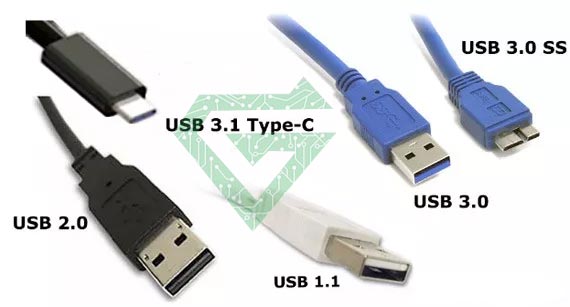
- USB 1.0/1.1 ports: USB 1.0 ports don’t have a standardized internal color, but generally, they often appear in White on the inside of the port (the plastic tab inside the connector). USB 1.0 released in 1996 and USB 1.1 released in 1998. This version of USB (1.0) has 1.5 Mbps speed and USB (1.1) has 12 Mbps speed. Generally, used this version of USB in keyboards, mice, basic peripherals.
- USB 2.0 ports: usually black and also white inside. This version of USB released in 2000 and speed of it is 480 Mbps, so it has high speed. Used this version of USB in flash drivers, printers and game controllers. One of the most important features of this version is introduced basic power delivery up to 2.5W.
- USB 3.0 ports: The color of this one is typically blue and released in 2008. Its speed is 5Gbps (superspeed). Usually, used this version of USB in External hard drives and high-speed transfer and other features of this type are improved power delivery up to 4.5w and full duplex data transfer (can send/received simultaneously).
- USB 3.1 ports: This version released in2013 and often teal and blue inside. The speed of this version is 10Gbps (superspeed+). We use in faster SSDs, video output and charging. The other features of this version are better efficiency and introduced USB Type-C connector (optional).
- USB-C ports: no color, but small and oval.
What to do if USB is not working?
What do you do if your computer or laptop’s USB port is not working? This article provides five of the most common methods for troubleshooting and repairing a USB port that is not working properly.
- Try another USB port: Disconnect the device and connect it to a different USB port.
- Replace the USB cable: If your cable is old or has been used a lot, it may no longer work properly. Replace the cable and see if the problem is resolved.
- Clean the USB port: Use a very thin, non-metallic tool, such as a toothpick, to carefully pry open the port. Do not use a can of high-pressure canned air.
- Restart the computer: Turning it off and then back on can clear any corrupted data and automatically reset the device drivers.
- Reset SMC if you are using a Mac: You can also use another method, open Device Manager to check for hardware changes and if you have a PC, disable and re-enable the USB controller.
How USB Helps to Connect Devices?
USB helps devices connect and communicate by handling data transfer, power delivery or both. all through one simple cable or port. Here’s how it works in real life:
- Data Transfer
USB allows two devices to exchange data. For example:
- Plug in a flash drive to copy files.
- Connect a phone to a PC to sync photos/music.
- Use a USB cable to link a camera to a computer for importing images.
- Power Supply / Charging
USB can also supply power:
- Charge your phone from your laptop.
- Power external hard drives, LED lights, fans, etc.
- USB-C can charge full laptops (like a MacBook or Dell XPS).
- Peripheral Control
USB connects input/output devices to your computer:
- Keyboards, mice, game controllers, drawing tablets.
- USB hubs allow you to plug in many devices through one port.
Read more: What is SFP port
How to set up the USB?
Most USB devices are plug-and-play, which means:
- Just plug them in.
- Your computer auto-detects and installs drivers (software to make it work).
- No need for restarts or extra setup in most cases.
Real-Life Example:
Let’s say you plug your phone into your laptop via USB-C:
- It starts charging (power).
- It might open a file explorer so you can move photos (data).
- And if you’re sharing your screen, it might even send video/audio through the same cable (USB-C supports that too).
What devices have USB port?
Tons of devices have USB, it’s everywhere! Here’s a list of common ones across different categories;
-Network devices
- Network switch
- Server
- Router
- CCTV
- Access point
- firewall
Read more: Different types of Cisco Fiber Optic Module
– Computers & Accessories
- Laptops (USB-A, USB-C)
- Desktops (usually have many USB ports)
- Keyboards & Mice
- Webcams
- Printers/Scanners
- External hard drives & SSDs
- USB flash drives
- USB hubs
-Phones & Tablets
- Smartphones (USB-C or Micro-USB for Android, Lightning for iPhones)
- Tablets (like iPads with USB-C or Lightning)
- You can connect:
- Chargers
- File transfer cables
- OTG (On-the-Go) accessories like flash drives or game controllers
-Gaming Devices
- Game consoles (PS5, Xbox, Nintendo Switch — all have USB ports)
- Controllers (connect or charge via USB)
- VR headsets (like Oculus/Meta Quest — use USB-C)
-Audio & Video Devices
- Headphones/Headsets (some are USB-C or USB-A)
- Microphones (USB mics like Blue Yeti)
- Speakers
- Webcams
-Cameras
- DSLRs and GoPros (often use USB for charging or data transfer)
- Security cameras (some powered via USB)
-Power & Charging Devices
- Power banks (have USB-A and USB-C ports)
- Wall chargers
- USB desk fans/lights
-Car Devices
- USB ports in cars for:
- Charging phones
- Connecting to the car stereo (like Apple CarPlay or Android Auto)
-Other Cool Stuff
- USB fridges
- USB coffee warmers
- USB plasma balls
Conclusion:
A USB port is a cable, connector, and protocol interface on computers, peripherals, and other electronic devices. It works by transferring data between devices and also supplying power. It replaces serial and parallel ports and is 100 times faster.
USB was originally designed for computer peripherals, such as keyboards, mice, external hard drives, printers, scanners, cameras, and the like, but more recently, USB has become a versatile interface for audio and video devices such as speakers, microphones, monitors, and webcams. But today, USB ports are most commonly used in networking, as they are used to transfer data, such as network cards, modems, printers, and so on.
In this article, we told you all about USB port, if it was useful and practical, you can read our other articles in Atech blog.