


What is a command-line interface (CLI)

CLI was used since 1960. on that time, people only had keyboard and monitor for showing their information. The operate systems such as MS-DOS used CLI as Command Line Interface.
Actually, it was the only way to connect with computer for entering codes and instruction, so after typing each command, computer showed the result as a text to user. In this article, we want to talk about CLI. What is a command-line interface (CLI).
What is a command-line interface (CLI):
As you can see in title, CLI is short form of command-line interface and showing the result of commands as a text. After years and invented mouse, the new interaction formed between users and computers. Although, GUI was able to be popular in programmer some of professional programmers prefer CLI.
They use command line communication to execute commands instead of searching through complex menu and key and icon processes. It should be noted that some operating systems allow the user to use both methods. The most important thing in using the CLI is to type the commands correctly, so as not to cause errors or delete files unintentionally. For this reason, some programmers are not comfortable working with CLI.
Eventually, CLI is a kind of edit environment and perform command based on text. CLI is using as a platform that connect to operate system or program with writing commands.

What is the goal of CLI:
In the previous generation of computers, when GUI-based systems were developed, computers used some command-line operating system agents such as MS-DOS, Apple-DOS, Unix, etc. Every human with this operating system is done through some commands. It was later interpreted by an interpreter that acted as an intermediary between human commands and the OS’s machine language.
Some of the most common daily tasks involving the CLI or Command Line Interface were entering a directory, creating a new file, writing text to a file, deleting a file, displaying files in a folder, etc.
However, even in the modern world of GUI operating systems when we make clicking the mouse the easiest way to interact with the operating system, visit websites and more The CLI is still used in many places to perform some basic tasks.
The most common and frequent use of CLI or Command Line Interface is by programmers who use this tool to add/install components to their programs.
They also use the CLI to perform some system-related configuration on the server automatically based on the scenario so that no actual work is required on the server. They usually store a command file or PowerShell script that can run CLI commands on the server and perform the required operations/configurations.
Read more: Definition of Telnet
Advantages of CLI:
- Efficiency: You can perform operations on multiple files with a single text command in CLI, saving time compared to finding and clicking on each file. If you’re familiar with these commands, you can navigate quickly and interact with the system. You can create script to automate tedious or repetitive tasks by executing multiple commands in the CLI.
- Remote Access: CLI application normally consume fewer network resource compared to graphical applications. This prepares CLI applications good for systems with limited hardware capabilities or remote server environments. Even with lower connection bandwidth, you can remotely manage servers securely by submitting commands through Secure Shell. This is the preferred method for managing servers and cloud instances, especially in headless environments without a graphical interface.
- Troubleshooting: For developers and system administrators, proficiency in the command-line interface is a valuable skill that encourages a deeper understanding of underlying systems. With CLI, you can become more adept with various tools and utilities while improving error management. For example, you can use the CLI to view system logs and quickly find comprehensive error messages and debugging information. Text-based commands are also easy to log, ensuring task reproducibility and facilitating future troubleshooting steps.
- Repetitive operations: The CLI is very good at automating repetitive operations, and you may use a batch file to automate jobs at any time.
- Power user: A CLI is suitable for power users since it allows them to execute commands that are not available in the GUI.
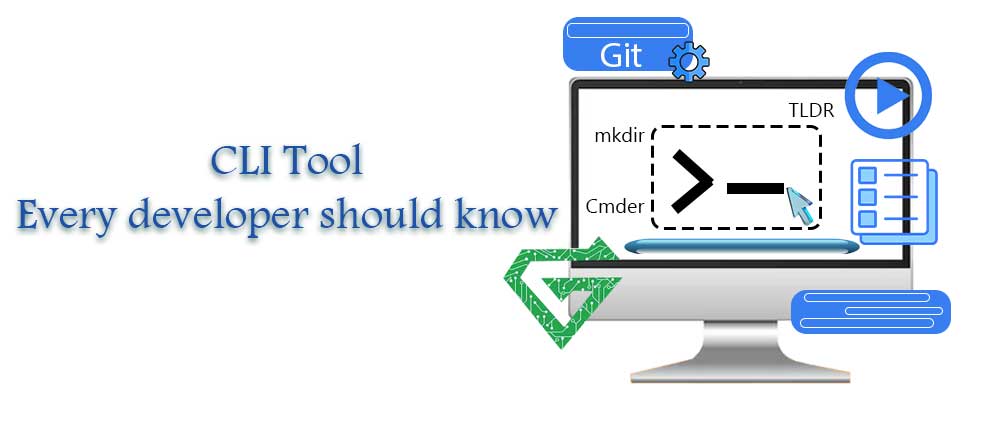
Disadvantages of Command Line Interface:
You can see some risks of Command Line Interface bellow;
Error management: Errors in command writing might cause files to be deleted or moved to the incorrect location. You run the risk of encountering issues if you unintentionally remove any files, especially if they hold crucial information.
Learning curve: Acquiring command knowledge takes time. The majority of commands are lost if they are not used on a regular basis.
Replicate orders: The majority of commands on the command line interface cannot be undone or reversed. As a result, using commands requires extreme caution. The majority of the time, a command’s execution is irreversible and continues.
Difficult to remember: Recalling every command that is used in the command-line interface might be challenging. Over 100 CLI commands are available in UNIX.
Read more: What is Spanning Tree Protocol (STP)
How does CLI work:
A command line interface (CLI) is a text-based interface where you can input commands that interact with a computer’s operating system. The CLI operates with the help of the default shell, which is between the operating system and the user.
-CLI shell
A shell refers to a program that is an intermediary between the user and the operating system. Examples include Bash, cmd.exe, PowerShell, and others for more specific functions.
The shell is responsible for handling various tasks such as command parsing, environment management, and process execution. Shells also support features like these:
- Command history, where you can access previously entered commands using arrow keys or other shortcuts
- Input and output redirection
- Piping: where you connect the output of one command as the input of another and environment variable management
Additionally, you can customize your shell environment. To do this, you can set environment variables, define aliases (shortcuts for longer commands), and create shell scripts for automation or repeated tasks.
Features of CLI:
- Command history: this feature helps the user to remember earlier commands they have given. Certain programs, such as PowerShell, can be set up to save the history of commands for the duration of the session, while others, do not.
- Scripting capacity: this feature lets users create program that can be executed from the command line on the system.
- System variables: the values of those variables can be shown or set at the command line.
- Command pipes: with piping the data flow, command pipes allow users to which programs output should be used as the input for another.
How do you open the CLI on your system?
There are different ways for accessing the command line interface;
-Windows:
You can see how to open the CLI in windows on windows 8 or beyond:
- Press the windows key and “S”
- Type “cmd” into the search field
- Right-click “Command Prompt” and select “Run as Administrator”
- You can now enter a command prompt
-MAC:
- Locate the Finder application, which is usually on your toolbar
- Move through /Applications/Utilities
- Select “Terminal”
- You can now enter a command prompt
-Linux:
Using the shortcut “CTRL+ALT+T”. Alternatively, you can use ALT+F2 and then enter “gnome-terminal.”
Read more: Access Control List (ACL)
Some examples of CLI command:
| Basic Linux CLI Commands | |
|---|---|
| Command | Description |
| ls | List the directory (folder) system. |
| cd pathname | Change directory (folder) in the file system. |
| cd .. | Move one level up (one folder) in the file system. |
| cp | Copy a file to another folder. |
| mv | Move a file to another folder. |
| mkdir | Creates a new directory (folder). |
| rmdir | Remove a directory (folder). |
| clear | Clears the CLI window. |
| exit | Closes the CLI window. |
| man command | Shows the manual for a given command. |
| Basic Windows CLI Commands | |
|---|---|
| Command | Description |
| dir | List the directory (folder) system. |
| cd pathname | Change directory (folder) in the file system. |
| cd \ | Move to the root folder of the file system. |
| cd .. | Move one level up (one folder) in the file system. |
| copy | Copy a file to another folder. |
| move | Move a file to another folder. |
| type filename | Type a file. |
| mkdir or md | Creates a new directory (folder). |
| rmdir or rd | Removes a directory (folder). |
| cls | Clears the CLI window. |
| exit | Closes the CLI window. |
| help command | Shows the manual for a given command. |
| DOS Commands Help | |
|---|---|
| ASSOC | Displays or modifies file extension associations. |
| ATTRIB | Displays or changes file attributes. |
| BREAK | Sets or clears extended CTRL+C checking. |
| BCDEDIT | Sets properties in boot database to control boot loading. |
| CACLS | Displays or modifies access control lists (ACLs) of files. |
| CALL | Calls one batch program from another. |
| CD | Displays the name of or changes the current directory. |
| CHCP | Displays or sets the active code page number. |
| CHDIR | Displays the name of or changes the current directory. |
| CHKDSK | Checks a disk and displays a status report. |
| CHKNTFS | Displays or modifies the checking of disk at boot time. |
| CLS | Clears the screen. |
| CMD | Starts a new instance of the Windows command interpreter. |
| COLOR | Sets the default console foreground and background colors. |
| COMP | Compares the contents of two files or sets of files. |
| COMPACT | Displays or alters the compression of files on NTFS partitions. |
| CONVERT | Converts FAT volumes to NTFS. You cannot convert the current drive. |
| COPY | Copies one or more files to another location. |
| DATE | Displays or sets the date. |
| DEL | Deletes one or more files. |
| DIR | Displays a list of files and subdirectories in a directory. |
| DISKPART | Displays or configures Disk Partition properties. |
| DOSKEY | Edits command lines, recalls Windows commands, and creates macros. |
| DRIVERQUERY | Displays current device driver status and properties. |
| ECHO | Displays messages, or turns command echoing on or off. |
| ENDLOCAL | Ends localization of environment changes in a batch file. |
| ERASE | Deletes one or more files. |
| EXIT | Quits the CMD.EXE program (command interpreter). |
| FC | Compares two files or sets of files, and displays the differences between them. |
| FIND | Searches for a text string in a file or files. |
| FINDSTR | Searches for strings in files. |
| FOR | Runs a specified command for each file in a set of files. |
| FORMAT | Formats a disk for use with Windows. |
| FSUTIL | Displays or configures the file system properties. |
| FTYPE | Displays or modifies file types used in file extension associations. |
| GOTO | Directs the Windows command interpreter to a labeled line in a batch program. |
| GPRESULT | Displays Group Policy information for machine or user. |
| GRAFTABL | Enables Windows to display an extended character set in graphics mode. |
| HELP | Provides Help information for Windows commands. |
| ICACLS | Display, modify, backup, or restore ACLs for files and directories. |
| IF | Performs conditional processing in batch programs. |
| LABEL | Creates, changes, or deletes the volume label of a disk. |
| MD | Creates a directory. |
| MKDIR | Creates a directory. |
| MKLINK | Creates Symbolic Links and Hard Links. |
| MODE | Configures a system device. |
| MORE | Displays output one screen at a time. |
| MOVE | Moves one or more files from one directory to another directory. |
| OPENFILES | Displays files opened by remote users for a file share. |
| PATH | Displays or sets a search path for executable files. |
| PAUSE | Suspends processing of a batch file and displays a message. |
| POPD | Restores the previous value of the current directory saved by PUSHD. |
| Prints a text file. | |
| PROMPT | Changes the Windows command prompt. |
| PUSHD | Saves the current directory then changes it. |
| RD | Removes a directory. |
| RECOVER | Recovers readable information from a bad or defective disk. |
| REM | Records comments (remarks) in batch files or CONFIG.SYS. |
| REN | Renames a file or files. |
| RENAME | Renames a file or files. |
| REPLACE | Replaces files. |
| RMDIR | Removes a directory. |
| ROBOCOPY | Advanced utility to copy files and directory trees. |
| SET | Displays, sets, or removes Windows environment variables. |
| SETLOCAL | Begins localization of environment changes in a batch file. |
| SC | Displays or configures services (background processes). |
| SCHTASKS | Schedules commands and programs to run on a computer. |
| SHIFT | Shifts the position of replaceable parameters in batch files. |
| SHUTDOWN | Allows proper local or remote shutdown of machine. |
| SORT | Sorts input. |
| START | Starts a separate window to run a specified program or command. |
| SUBST | Associates a path with a drive letter. |
| SYSTEMINFO | Displays machine specific properties and configuration. |
| TASKLIST | Displays all currently running tasks including services. |
| TASKKILL | Kill or stop a running process or application. |
| TIME | Displays or sets the system time. |
| TITLE | Sets the window title for a CMD.EXE session. |
| TREE | Graphically displays the directory structure of a drive or path. |
| TYPE | Displays the contents of a text file. |
| VER | Displays the Windows version. |
| VERIFY | Tells Windows whether to verify that your files are written correctly to a disk. |
| VOL | Displays a disk volume label and serial number. |
| XCOPY | Copies files and directory trees. |
| WMIC | Displays WMI information inside interactive command shell. |
What are the best practices of CLI:
While a command-line interface (CLI) is useful and can provide remote access, it requires you to be precise and know the correct commands. Understanding the commands that you input will ensure you get the desired result. If you’re unfamiliar with a command, you should research what it does before you input it into the CLI. Similarly, make sure you input the command without any variations or spelling mistakes.
Another important practice is to restrict the CLI for any non-privileged users. Granting administrator rights only to trusted parties limits unnecessary interactions with the system. You can prevent unauthorized access to critical resources.
An additional security practice you should consider is keeping your system up to date. Updates release bug fixes, performance improvements, and, importantly, security patches. Keeping your CLI up to date ensures your system is as secure as possible. Finally, it’s a good idea to log all command-line interface activities in order to detect changes, spot suspicious behavior, and troubleshoot if anything goes wrong.
Conclusion:
The people who use the CLI are programmer, second computer users and administrators. This is not a programming language. it is a tool. In this article, we try to talk about “What is a command-line interface (CLI)”, “How does CLI work”, “Advantages and Disadvantages of CLI” and more.
We suggest you to read this post and our other articles in Atech blog. We focus more on network equipment for example network switch or network router and its protocols to help IT men and programmer.
If you have any question about CLI and other protocols such as DHCP, contact us with +971522135004.